
Your Favorite Food Trucks, Right on Your Home Screen
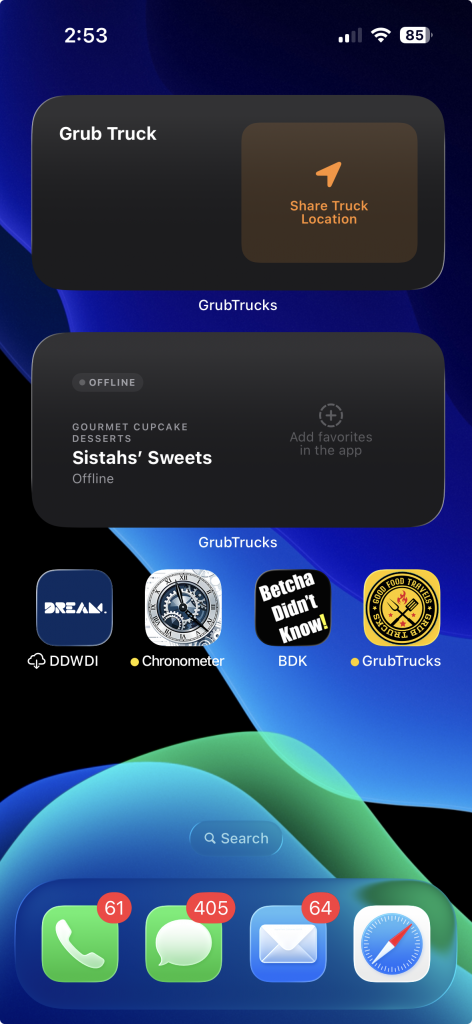
We just made finding your favorite food trucks even easier — no need to open the app. GrubTrucks now has widgets.
—
See Your Favorites at a Glance
Add the Favorite Trucks widget to your home screen and you’ll always know which trucks are out right now. Active trucks float to the
top so you never have to hunt. The widget updates automatically throughout the day, checking more frequently when trucks are live so
you catch them before they pack up.
It comes in three sizes — small for a quick status check, medium for a few trucks at once, or large when you’re seriously hungry and
need the full picture. Tap anywhere on the widget to jump straight to your favorites in the app.
—
Truck Owners: Share Your Location Without Opening the App
If you run a food truck, you can now start and stop sharing your location straight from your home screen — no digging through the app
required.
The Share My Location widget shows your truck’s current status and address. One tap starts sharing; one tap stops. If you own more
than one truck, you can add a separate widget for each one.
On iOS 18, there’s also a Control Center toggle — pull down from the top right and flip your location on or off in an instant, the
same way you’d toggle Wi-Fi or Do Not Disturb.
ScreenRecording_05-31-2026 13-34-38_1
Truck Owners: Write Better Descriptions with Apple Intelligence
First impressions matter. Your truck’s description is often the first thing a hungry customer reads, and now writing a great one
takes seconds.
When editing your truck profile, tap the Improve button next to the description field. Apple Intelligence rewrites your text
on-device — making it more appetizing, more engaging, and better suited for customers browsing the app. Your original draft is
replaced with a polished version, and nothing leaves your device to do it.
You can also use Writing Tools anywhere in the description field — just select your text and the familiar iOS editing menu will offer
options to proofread, rewrite, or adjust the tone.
Apple Intelligence features require an iPhone 16 or later (or an M-series iPad or Mac) with Apple Intelligence enabled in Settings.
If your device doesn’t support it, the Improve button simply won’t appear.
—
How to Add the Widgets
1. Long-press your home screen and tap the + button in the top left.
2. Search for GrubTrucks.
3. Choose the widget that fits you — Favorite Trucks for customers, Share My Location for owners.
4. Pick your size and tap Add Widget.
That’s it. Your trucks are now one glance away.